
Vyberte svou polohu
Pro co nejlepší zkušenost s těmito webovými stránkami prosím zvolte polohu a jazyk
Pro co nejlepší zkušenost s těmito webovými stránkami prosím zvolte polohu a jazyk

If you are using an Excel spreadsheet or other database (such as Access, SQL, or a full ERP system) to manage your business and product data, there's an easy way to eliminate manual processes from your label printing process! Most pain points in labeling processes stem from having too much room for human error and a lack of automation. Printing labels using your Excel data can help you save time, money, and maximize your efficiency.
In this blog, we'll walk you through how to connect excel data to your label the smart way using database connections.
Want to see how it works in real time? Download a free 30-day trial of LABELVIEW and follow along as you read.
Printing labels from Excel without a database connection is common, but it's not efficient.
A typical manual workflow with Excel data looks like this:
The problem with manual label printing is that every field you type is another opportunity for error. The more data your labels contain, such as part numbers, lot codes, expiration dates, or barcodes, the higher the risk. Mistakes might be caught right away, or worse, after labels have already been applied, shipped, or scanned downstream.
Manual processes also don't scale well. When a new product is introduced or an existing label changes, you often end up creating or editing label files one by one. That takes time and makes it harder to stay consistent.
Instead of managing individual label files, a better approach is to manage your data. When Excel is connected directly to your label software, updating a spreadsheet automatically updates what prints on the label. New products, updated quantities, or revised information are handled at the data level, not by rebuilding labels.
Database connections are a feature in TEKLYNX label design software that enable label templates to pull variable data in from an existing database. Excel spreadsheets can be considered a simple database, and as businesses grow and become more complex, they might graduate to a more robust database such as Microsoft Access. Database connections allow you to select a key data element (such as the part number or order number), and all other data is automatically populated on the label. Instead of maintaining hundreds of separate label files, you can create a handful of label templates that use Excel spreadsheets to print variable data.
Here's an example of using database connections to print variable data on nutrition facts labels.
Here's how to get your spreadsheet ready so the connection works smoothly:
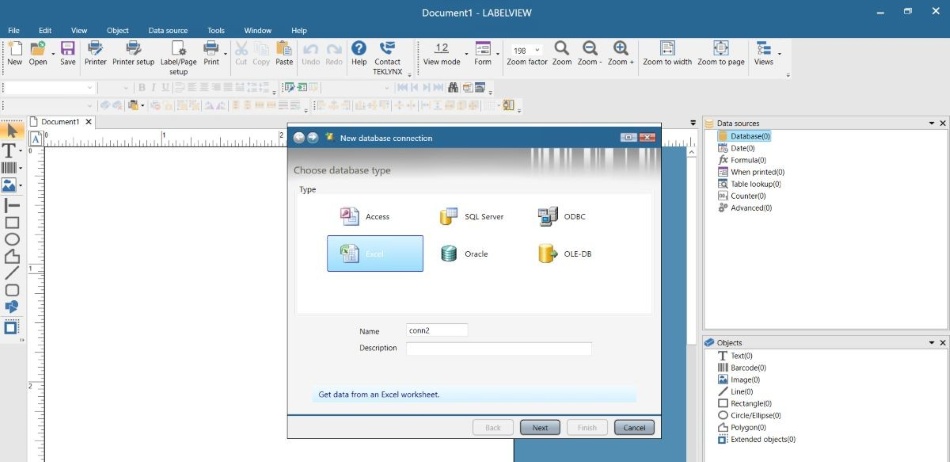
Start by launching your TEKLYNX label design application (like LABELVIEW or CODESOFT). This is where you'll design or open your label templates.
Now that data source is linked to your label environment. You've basically told the software "Here's where my data lives."
Every label has fields (part numbers, descriptions, barcodes, etc.). When the query opens, pick the columns from your spreadsheet that correspond to those label fields.
Once selected, those columns become available variables that your label template can use.
In your label template, replace the old static text with variables from the Excel connection. Drag and drop the fields onto the label, and select whether they should display in text, barcode, or image format.
This is where your template becomes dynamic, meaning the label content automatically updates based on your spreadsheet data, allowing a single template to represent thousands of different products without manual editing.
Most TEKLYNX software allows you to preview what each label will look like before printing. Scroll through a few records to make sure your data is coming through correctly.
Now you can print directly from the connected label template. Filter your Excel data if you only want certain rows printed (like today's orders) or print the whole dataset.
That's it! You've just gone from manual entry to automated printing with Excel as your single source of truth.
Prefer to see these steps in video format? Take a look at our step-by-step videos:
Video: How to Connect an Excel Spreadsheet or Access Database to your CODESOFT Label Template
Video: How to Connect an Excel Spreadsheet or Access Database to your LABELVIEW Label Template
Video: How to Connect an Excel Spreadsheet or Access Database to your LABEL MATRIX Label Template
Using smart label templates and variable data means you don't need a separate template for every SKU — one template dynamically adapts to your data. That's scalable and easier to manage.
If your spreadsheet lives online (Google Sheets, Excel Online) or you want print access across your team, cloud-linked or browser-based printing makes Excel even more flexible. Watch this video to learn how to connect your data to Excel Online:
Connecting your labels to Excel is a strong first step, but automation tools like SENTINEL take it further. SENTINEL continuously monitors your data sources, such as Excel files, databases, or ERP systems, and automatically triggers label printing when specific conditions are met.
As The Real Good Life's meal delivery business grew, its manual labeling process became slow and error-prone. By implementing LABELVIEW, the team was able to print accurate food and delivery labels directly from Excel in seconds, eliminating handwritten labels. The streamlined process now supports new product additions with simple spreadsheet updates. Read the full case study.
Are you looking to eliminate manual steps in your labeling environment? Download a free 30-day trial of LABELVIEW barcode label software. If you have any questions or run into any problems along the way, our TEKLYNX Customer Support Team is one phone call away!
Travis Wayne is the Product Manager at TEKLYNX. Travis applies his 20+ years of IT and health sciences experience to empower businesses to streamline operations and barcode better by applying software and technology. He works to continually improve TEKLYNX strategic planning, product and project management principles, and cross-functional communications. When not working, he enjoys many outdoor activities with his wife and two children.
As the world is becoming increasingly digital, cloud technology is becoming more prevalent in our daily lives and in our companies. People stream their favorite shows through the cloud, facilitate business meetings through the cloud, and share important company files and documents in the cloud. So why not store your barcode data and labels in the cloud, too?
Picture a world where your label data is always 100% right, cutting down on waste and making life easier for users. For many businesses—especially those in manufacturing, food and beverage, and other industries—that need precise labeling, this may seem impossible. But the answer is simple: having a single source of truth (SSOT) for label data.
READ MORE
As our world moves towards a digital transformation, automation is a crucial tool for a thriving business. By automating processes, companies can make their workflows faster and more efficient, enabling them to do more with less. This blog will go over how to automate your label printing and how TEKLYNX can help in providing solutions.
READ MORE© Copyright 2026 TEKLYNX CORPORATION SAS. Všechna práva vyhrazena.
What do you think? Leave us a comment.
Comments will be reviewed and are subject to TEKLYNX’ comment policy. Your email address will not be published publicly.