
เลือกตำแหน่งที่ตั้งของคุณ
โปรดเลือกตำแหน่งที่ตั้งและภาษาของคุณเพื่อรับประสบการณ์เว็บไซต์ที่ดีที่สุด

Creating labels one at a time may work when you only need a handful, but when you have dozens or hundreds of products, SKUs, barcodes, addresses, or other variable information to print, manually duplicating labels and replacing the data can quickly become time-consuming.
Batch label printing simplifies that process by allowing you to create one reusable label template, connect it to a data source, and print multiple labels with different information in one workflow.
Download free trial of batch label printing software
Batch label printing is the process of creating and printing multiple labels together instead of building and printing each label individually.
The labels in a batch do not have to be identical. They can use the same overall design while containing different product names, SKUs, barcode values, prices, serial numbers, addresses, or other variable information.
For example, imagine a business needs to print labels for 100 different products. Each product label uses the same layout, but the product name, SKU, and barcode are different. Instead of creating 100 individual label files, the business can create one label template and connect it to a spreadsheet containing all 100 product records. The label software pulls the appropriate information from each row and places it into the correct fields on the template.
In other words: One label template + one data source = many unique labels.
The biggest benefit of batch label printing is that it reduces the amount of repetitive work involved in creating labels.
If you are using a free barcode generator or a general design tool such as Canva, your process might involve generating a barcode, downloading it, adding it to a design, changing the text, duplicating the design, and repeating the process for the next product.
That can be manageable for a few labels, but as your label volume grows, this workflow can become difficult to maintain.
The comparison chart below highlights the core differences between manual and batch labeling. Manual label creation scales poorly because every new label adds more repetitive work. Batch label printing, on the other hand, is designed to scale by separating the label design from the label data.
| Creating Labels Manually | Batch Label Printing |
|---|---|
| Create or duplicate individual designs | Create one reusable label template |
| Copy and paste changing information | Pull changing information from a single data source |
| Generate and place individual barcodes | Generate barcodes from variable data |
| Repeat design changes across many files | Update one template |
| Re-enter data manually | Use existing product or business data |
| Works well for small quantities | Easier to manage as label volume grows |
The exact setup will depend on where your data is stored and what information your labels contain, but the basic batch printing process is straightforward.
Start by organizing the information that will change from label to label.
For example, a product spreadsheet might include:
| Product Name | SKU | Barcode | Price |
|---|---|---|---|
| Product A | 10001 | 012345678901 | $9.99 |
| Product B | 10002 | 012345678902 | $12.99 |
| Product C | 10003 | 012345678903 | $14.99 |
Think of each column as a type of information, and each row as a record that can be used to create a label.
Next, create the label design that every record in your batch will use.
Your template might contain a combination of:
Some information may remain the same on every label (fixed data), while other fields should change based on the selected database record (variable data).
LABELVIEW includes design wizards for creating labels and adding elements such as barcodes, images, text, and variables, making it easier to build a reusable template.
Once your template is created, connect it to the source that contains your variable information.
In LABELVIEW, you can go to:
Data Source > Database > Create/Edit Query
From there, select or create the database connection, choose the appropriate table, and select the fields you want to use on your label.
LABELVIEW can connect to common data sources such as:
Once the fields are available under Data Sources, drag the appropriate information onto your label as text, barcode, or other variable objects. A barcode object, for example, can use the barcode number stored in your database instead of requiring you to generate and insert a separate barcode image for every product.
Before printing the full batch, review the labels with different database records.
Check that:
LABELVIEW includes a print preview that updates as database records are selected, allowing you to see the data that will print before sending the job to the printer.
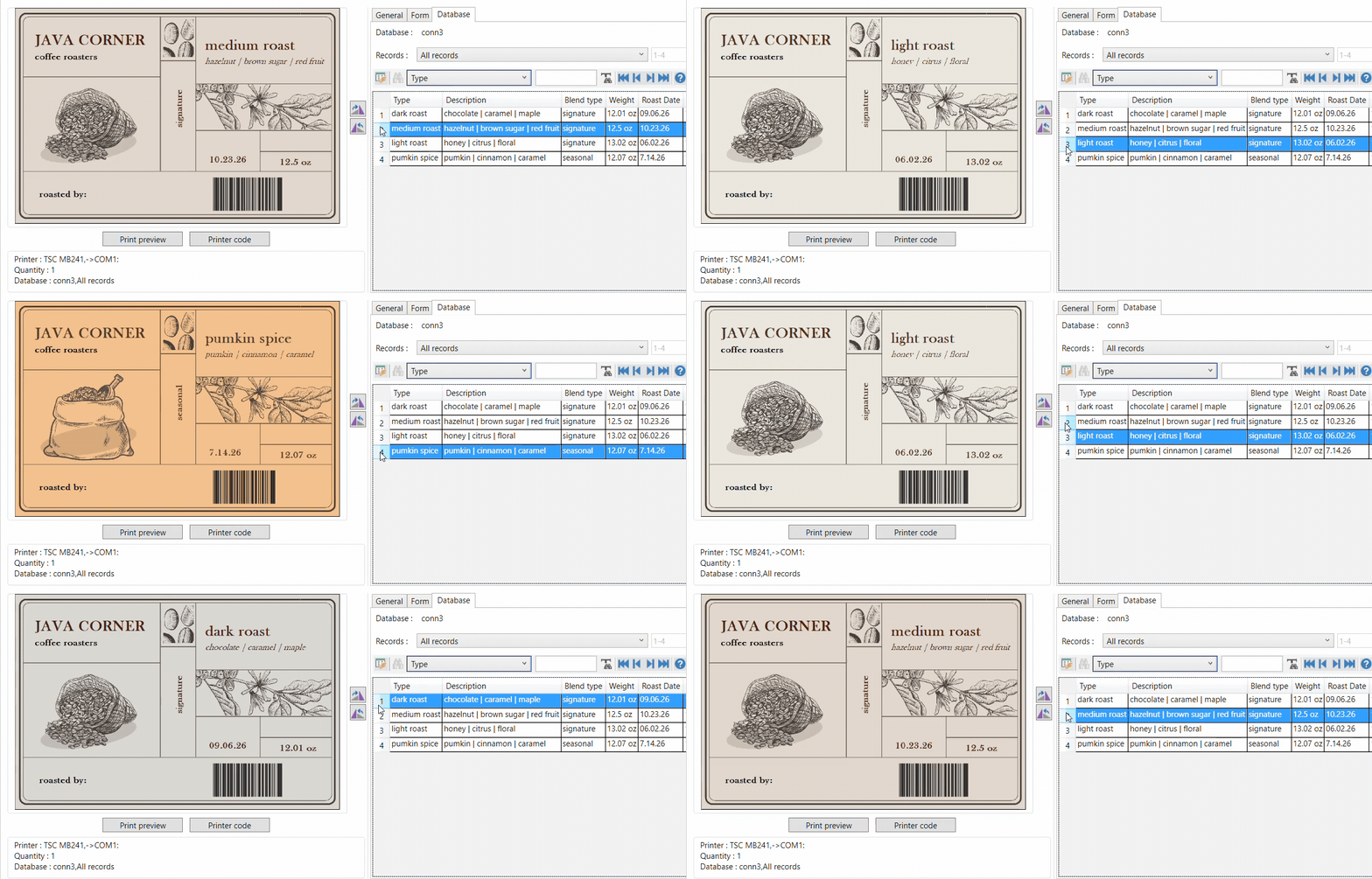
Batch printing does not always mean printing every record in your data source.
Depending on the job, you might need to print:
LABELVIEW includes database query functionality that allows records to be selected and filtered, and its Database Manager includes tools for selecting records according to their content.
Once the correct records are selected, choose your printer and quantity and send the batch to print.
LABELVIEW supports both the number of labels in a series and copies of each label, which makes it possible to print multiple unique labels as well as multiple copies of those labels. For example, if you select 25 product records and need four copies of each product label, you can print all 100 labels as part of the same workflow.
The next time your product data changes, you do not need to rebuild the label design. Simply update the source data, select the records you need, and print again.
Batch printing can make label production much more efficient, but as print volume and complexity grow, there may come a point when manually selecting records and starting each print job still takes too much time.
That is where label printing automation can help. Instead of relying on a print user to open the label design software and initiate a print, a business system such as an ERP or WMS can trigger the print job automatically.
TEKLYNX SENTINEL is designed for this type of automatic label printing workflow. It can receive print data from business systems, apply predefined rules to determine which label template and printer to use, and send the job to print automatically. Information can be sent to SENTINEL in several ways, including through flat files like TXT, CSV, or XML, directly from a database, or through a RESTful API.
For example, when an order is created in an ERP system, the order information can be sent directly to SENTINEL. SENTINEL then processes the data and automatically prints the correct label in seconds.
If you are interested in exploring print automation, get in touch with our labeling experts.
If creating labels individually has become repetitive, learning how to print labels in batches can simplify your labeling process without changing how your entire business operates.
LABELVIEW is designed for businesses beginning to incorporate variable information and database-driven templates into their labeling processes.
Download a free 30-day trial of LABELVIEW and see how batch label printing can make your labeling process faster, more accurate, and easier to manage.
Ready to buy? Buy LABELVIEW.
Shawn Frahman is the Product Specialist at TEKLYNX. He has a passion for troubleshooting and developing solutions that help customers better understand and use their software. Outside of work, Shawn enjoys participating in bowling and ping pong leagues.
National Barcode Day is a reminder of how much businesses rely on barcode labels every day. From manufacturing and retail to logistics and healthcare, barcodes power critical workflows behind the scenes. Creating a barcode may seem simple, but creating a barcode label that scans reliably throughout the supply chain requires much more than placing lines on a label.
READ MORE
This blog will examine barcode serialization, looking at its fundamental concepts, the benefits it can offer to businesses, and its broad applications across multiple industries. Whether you are in a regulated or non-regulated industry, learn how barcode serialization can shape the future of your business.
READ MORE
When you need to print a label, how long does it take to find the correct file, populate the correct data, and start the print job? If you’re not leveraging the power of variable data on smart label templates, it could take several minutes just to find the right label file!
READ MORE© Copyright 2026 TEKLYNX CORPORATION SAS. สงวนลิขสิทธิ์
What do you think? Leave us a comment.
Comments will be reviewed and are subject to TEKLYNX’ comment policy. Your email address will not be published publicly.